CS2 private matchmaking: how to set up, join, and fix lobbies
Table of Contents
What is cs2 private matchmaking?
Counter-Strike 2 has a built-in system for hosting custom matches in an invite-only environment. As Valve’s official solution, private matchmaking puts your closed group into a dedicated game room, away from random teammates. This setup lets friends play the competitive format without outside interruptions.
To gather exactly 10 players, you share a private match code so everyone joins the correct queue.
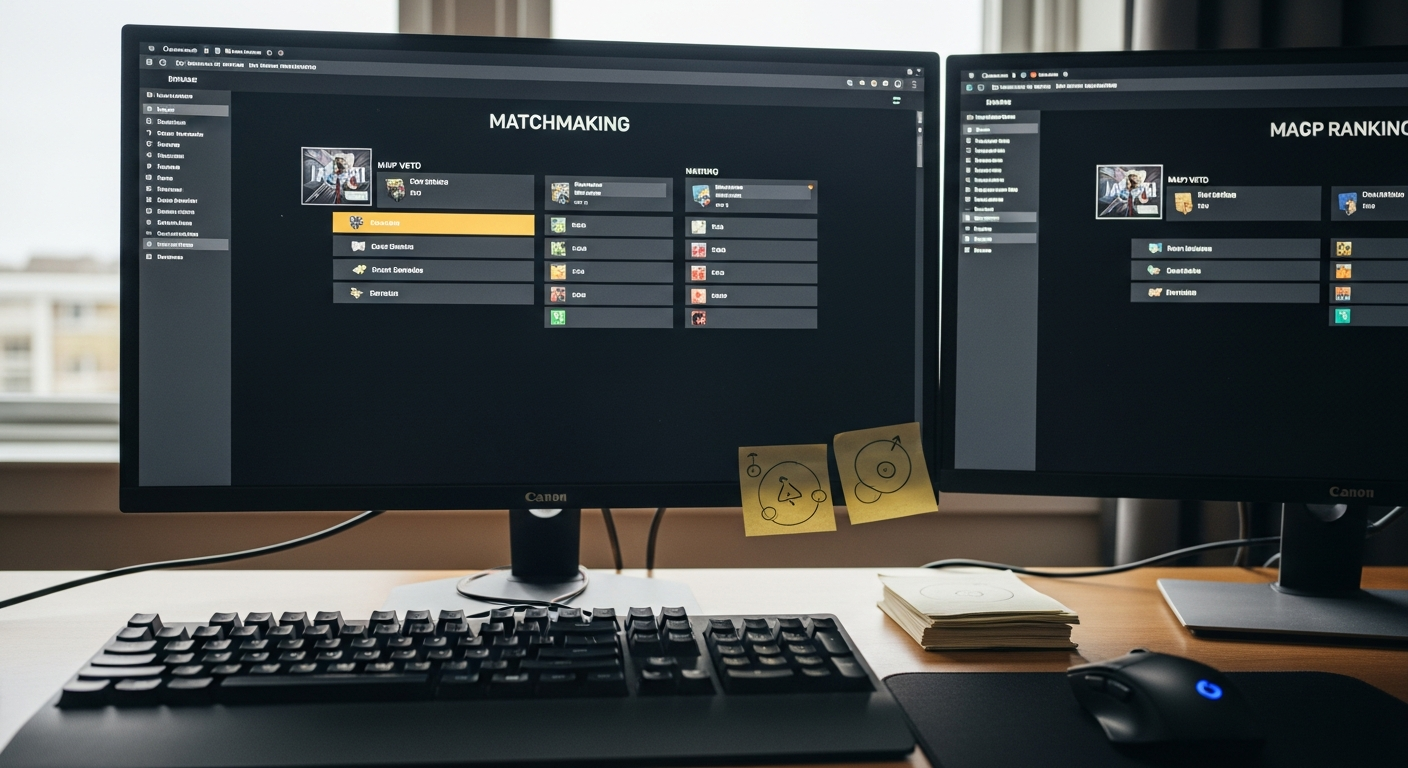
Once the lobby fills with players searching for a game, the system automatically generates an unrated Premier match. Everyone gets the current Premier ruleset and the standard map veto process, all running on official Valve servers.
Here are the primary characteristics defining this setup:
-
Official hosting: Matches run on standard Valve servers, guaranteeing a stable connection without requiring external third-party tools.
-
Format rules: The system mirrors standard Premier mode, with the same map veto phase and match economy.
-
Rank protection: Games are entirely unrated, so no one’s CS Rating or account XP changes.
Organizing private scrims is straightforward with the native client. Groups get the feel of a competitive match while keeping the lobby completely private.
How do you create a private match?
Starting a custom game means generating a unique lobby code through the standard menus. As the host, you set up the initial pool, which acts as a gathering point for your players. Creating a private match code takes only a few clicks, but organizing your group beforehand makes the launch go smoothly.
Before generating the queue, decide how you want the teams structured. If you want a fixed team-versus-team setup, build two separate 5-player parties before anyone enters the matchmaking phase. Once the groups are ready, follow these steps to create a private match and launch the game.
-
Menu navigation: Open CS2, click Play in the top navigation bar, select the Matchmaking tab, and choose Private Matchmaking.
-
Pool generation: Click Create a Private Matchmaking Pool, which attaches a dedicated lobby to your account.
-
Code distribution: Press the Share Code button to copy your full hyphenated cs2 lobby code, then send it to your friends or the opposing party leader.
-
Queue activation: Have every solo player or party leader enter that code, join the same pool, and press GO.
The game holds the queue open until exactly 10 eligible users are actively searching within that pool. Once the system detects the required count, it pulls everyone into the server and begins the map veto phase.
How do you invite friends to the lobby?
To invite friends in cs2, you need to understand how the two different invite methods work. There’s the standard party system, which keeps teammates together, and the matchmaking pool, which places multiple parties or solo players into the same closed queue. Which method you use depends on whether you want friends on your team or you’re bringing in opponents for a full match.
-
Direct Steam invites: Press Shift + Tab to open the Steam overlay, select the friends you want, and bring them into your CS2 party. This is the right move if you want a fixed five-stack, since everyone in the party stays on the same team.
-
Sharing the access key: For players joining as opponents or entering solo, distribute the six-digit cs2 lobby code the host generated. Send it to the opposing party leader or individual players through a separate chat rather than a direct party invite.
-
Manual entry: Players who receive the code go to the Private Matchmaking screen and enter it under they Manually Enter a Code option. This drops them into the shared pool alongside your pre-made party.
Using both the party system and the access key together ensures your lobby fills correctly. It also stops players from being scrambled randomly, keeping your custom matches organized.
What rules apply in private matchmaking?
Launching a session through Valve’s official private queue means playing by a strict competitive ruleset. Unlike traditional custom lobbies, this mode runs directly on a Valve server and is locked to the current Premier ruleset. The host has no configuration panel to tweak round times, adjust starting money, or change buy times. The environment is built to replicate a standard competitive match, nothing more.
-
Player requirements: The system requires exactly 10 active humans split into 5v5 teams. You can’t start with a smaller group or fill empty slots with bots.
-
Map selection process: The lobby follows the active Premier map pool and uses the standard pick-and-ban veto system. The host can’t skip this phase to force a specific map.
-
Rating and progression: These games are entirely unrated. Finishing a session won’t affect your CS Rating or award any profile XP.
If your group needs custom settings for specific drills or casual play, this official queue will feel too restrictive. For those situations, use cs2 practice mode or set up a dedicated cs2 server instead.
How can you customize a private match?
How much control you have over a lobby depends entirely on the type of session you start. Valve’s official private matchmaking locks your group into Premier rules with no host-side configuration panel. If you host through alternative methods like practice mode, though, you get a flexible invite-only environment where you can adjust nearly every aspect of the server.
When hosting a custom session outside the Premier queue, the host can change several core elements:
-
Game mode selection: You can switch between Competitive, Wingman, Casual, or Death match to fit different group sizes and play styles.
-
Map preferences: The lobby leader can pick any map from the standard active duty list or load custom files if the game supports them.
-
Rule configurations: Server settings let you change the number of rounds, adjust round time limits, and choose between bomb refusal or hostage scenarios.
These options let your private scrims run exactly as intended. Adjusting these parameters gives players the freedom to build proper training environments instead of working around default competitive restrictions.
When should you use Practice or Workshop?
Because official private matchmaking requires 10 players and enforces rigid competitive rules, players often need alternatives for smaller groups or specific training goals. CS2 practice mode or a custom workshop session works well for these cases, giving the host direct control over maps and game modes.
-
Small practice groups: You don’t need a full 10-player roster to launch the server, which makes it a good fit for a few friends testing utility or learning site rotations.
-
Bot sessions: Hosts can add or remove AI opponents to simulate live gunfights, useful for warming up without needing a full human lobby.
-
Custom environments: Players can load community-created layouts from the workshop to train aim, movement, or grenade lineups that standard maps don’t offer.
Setting up a workshop map lets you control the exact parameters of your training session on the fly. If you eventually need permanent administrative control for larger recurring scrims, renting a dedicated cs2 server is the logical next step.
When is a dedicated server better?
Standard lobbies and practice modes work fine for casual sessions, but a dedicated cs2 server gives you total control over the match environment. For communities or competitive teams that need persistent access, support for more than 10 players, and deeper customization, independent hosting is the way to go. It solves many of the limitations that come with temporary lobbies, though it does bring its own hardware demands.
Administrators should consider a dedicated environment for several reasons:
-
Persistent configuration: Server owners can save configs and set fixed map rotations, so the environment is always ready without manual setup each time.
-
Administrative access: Organizers get full control over custom game settings, including 128-tick enforcement, player management, and the ability to pause matches during scrims.
-
Reliable community access: Remote hosting with reusable passwords lets teammates join at any time, even if the primary organizer is offline.
Running these servers takes real computing resources to maintain proper tick rates and low latency. You’ll need a separate machine for hosting, since running the server software alongside the game client on one machine will tank performance for everyone. Allocating dedicated hardware keeps the practice environment stable for your competitive roster.
What to do when a private lobby fails?
When technical issues interrupt your lobby setup, you need to troubleshoot quickly. Connection drops, invalid code errors, and grayed-out menu options are all common problems. Fixing them fast means your team can get back to practice without losing time.
Unlocking the Matchmaking Option
A common issue for new accounts is finding the private matchmaking button grayed out in the menu. Valve enforces a basic playtime requirement to prevent spam and make sure users understand the fundamentals before creating private match instances. Playing 2 to 3 standard casual matches usually lifts the restriction and unlocks access to custom lobbies.
Resolving Connection and Code Errors
When the host starts a session, but teammates can’t connect, the access method is usually the problem. Double-check the 6-digit cs2 lobby code you shared with the group. If players get a matchmaking code invalid message, generate a fresh private match code.
Skipping manual entry entirely is a reliable workaround. You can invite friends in CS2 directly through the Steam overlay, which pulls them straight into the waiting room without any code input.
Resetting Game Configurations
Lobbies sometimes crash during the loading screen because of conflicting custom game settings. After creating the session, the host can change the map, tournament rules, and match conditions. Reverting everything to default often fixes launch failures, since it removes the variables that can cause crashes during map initialization. If peer-to-peer hosting keeps failing for your private scrims, moving your group to a dedicated CS2 server is a much more stable option.
What are common setup mistakes?
Setting up a local environment requires some attention to detail. Overlooking basic system parameters can cause performance issues or authentication blocks that interrupt gameplay. Knowing these common errors helps hosts keep things running smoothly for everyone in the lobby.
Improper Configuration and Stuttering
Players often jump into a session without checking their software environment first. Using the wrong game configuration leads directly to cs2 stuttering, especially when one player is acting as the local host. Conflicting visual settings or uncapped frame rates can overload the game engine. Before launching a custom map, hosts should make sure their video settings and network bandwidth match their hardware.
Ignoring Corrupted Files and VAC Errors
Neglecting core game files is a frequent cause of Valve Anti-Cheat authentication problems. Corrupted CS2 files are the most common reason for a sudden VAC error during matchmaking. Players often assume it means an account ban, but it usually points to an installation mismatch. Verifying the integrity of game files through the Steam client fixes the underlying issue.
The Offline Bot Workaround
Sometimes the system just needs a manual refresh to clear a temporary authentication glitch. If a persistent VAC error is blocking someone from entering the custom lobby, there’s a quick fix worth trying before reconnecting. The player should join a casual offline game with bots and play for around 5 to 10 minutes. This forces the game client to reinitialize its assets and often clears the false block, letting the player join the main group without further issues.