cs2 jump throw bind
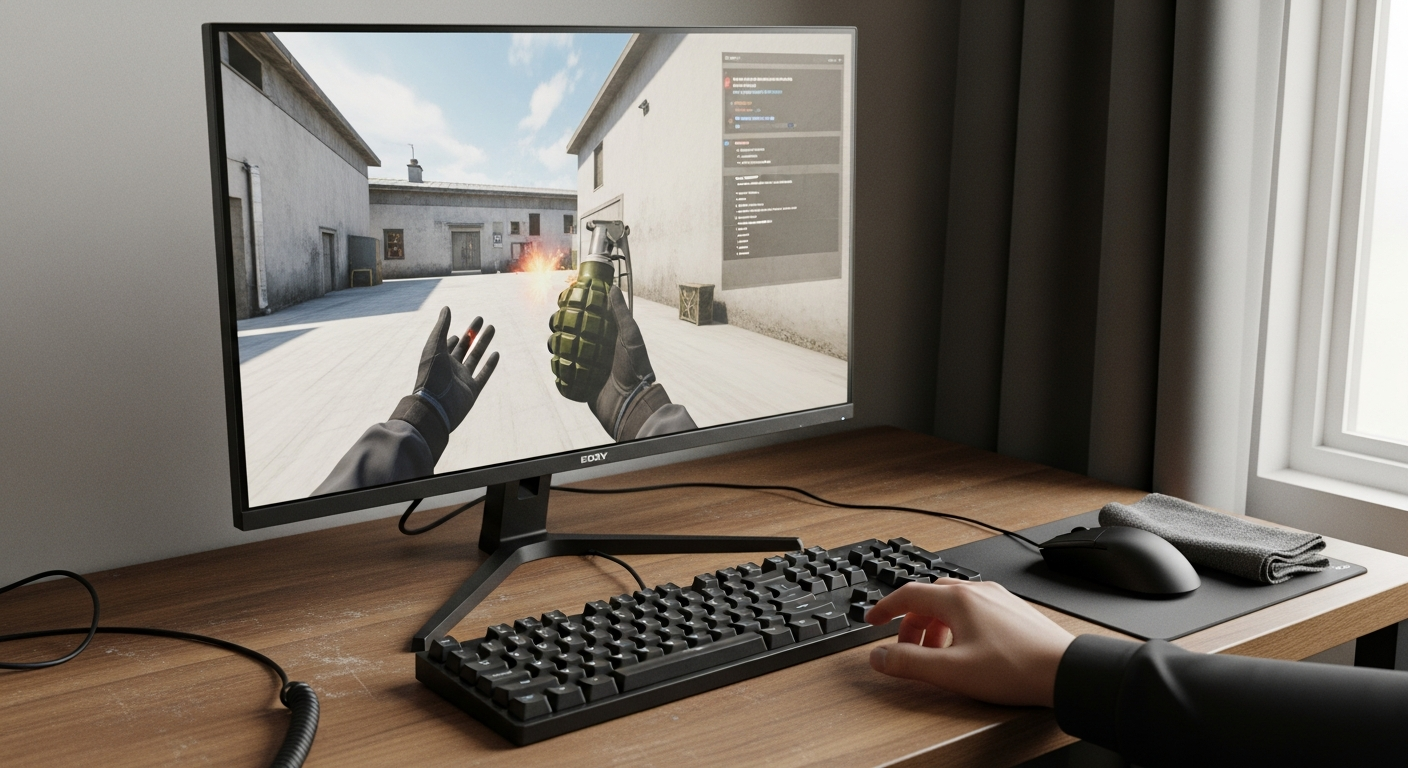
Table of Contents
What is a cs2 jump throw bind?
In Counter-Strike 2, a jump throw synchronizes a player’s jump with the moment they release a grenade. This propels utility items like smokes or Molotov’s much farther than a standing throw. Because hitting specific map landmarks requires real precision, players use a CS2 jump throw bind to map that whole sequence to a single key.
Automating the jump and release removes human error entirely. Pressing the designated key executes the jump and instantly releases the grenade at the peak of the character’s arc. That consistency means your utility lands in the same spot every match. As a result, reaching distant areas of the map becomes much more reliable, opening up tactical setups that would be too inconsistent to pull off by hand.
Turning this into a one-key action transforms something mechanically demanding into a guaranteed outcome. Competitive players lean on it so they’re not constantly worrying about mistimed releases.
How does a jump throw bind work?
A jump throw bind links multiple console commands to one keyboard input. When you press the assigned key, the game engine reads a script that fires both a jump and a release in rapid automated succession. Because manual input is removed, the grenade leaves the character’s hand at the exact peak of the arc every time.
Beyond the standard stationary version, many players also use a run jump throw bind for longer distances. That variation tells the engine to take a single step forward before jumping and throwing. Both methods solve the same core problem: inconsistent finger coordination. A dedicated grenade lineup bind ensures the projectile follows the same trajectory on every attempt.
These setups handle the mechanical side automatically, so you can focus on aiming and positioning instead.
How to set up a cs2 jump throw bind?
Setting this up takes a few specific steps inside the game client. First, enable the developer console in the settings menu under the game tab. Once it’s active, there are two main ways to apply these cs2 bind commands.
The quickest approach is pasting the commands directly into the console. Open it and enter the following lines one by one:
alias "+jump throw" "+jump;-attack"
alias "-jump throw" "-jump"
bind "JOURNEY" "+jump throw"
Replace the placeholder with whichever key you want to use.
For a permanent solution, most competitive players go with an autoexec.cfg file. Paste the same commands into a file named autoexec.cfg and save it in the correct configuration folder. The script will then load automatically every time the game starts. Many players also add a mouse wheel jump bind at the same time: bind mwheeldown +jump;bind wheel +jump;bind space +jump. That gives you 3 separate ways to trigger a jump, which helps with general movement too.
Once everything is saved, the engine knows exactly what to do when you press your chosen key.
How to use the bind in game?
Think of the bind as a shortcut that fires off a precise sequence with one keystroke. Once it’s configured, using it mid-match is simple.
Go to your chosen throw position, equip the grenade, and hold left mouse button to pull the pin. Instead of releasing the mouse and jumping manually, just tap your jump throw key (ALT, for example). The engine handles the rest automatically.
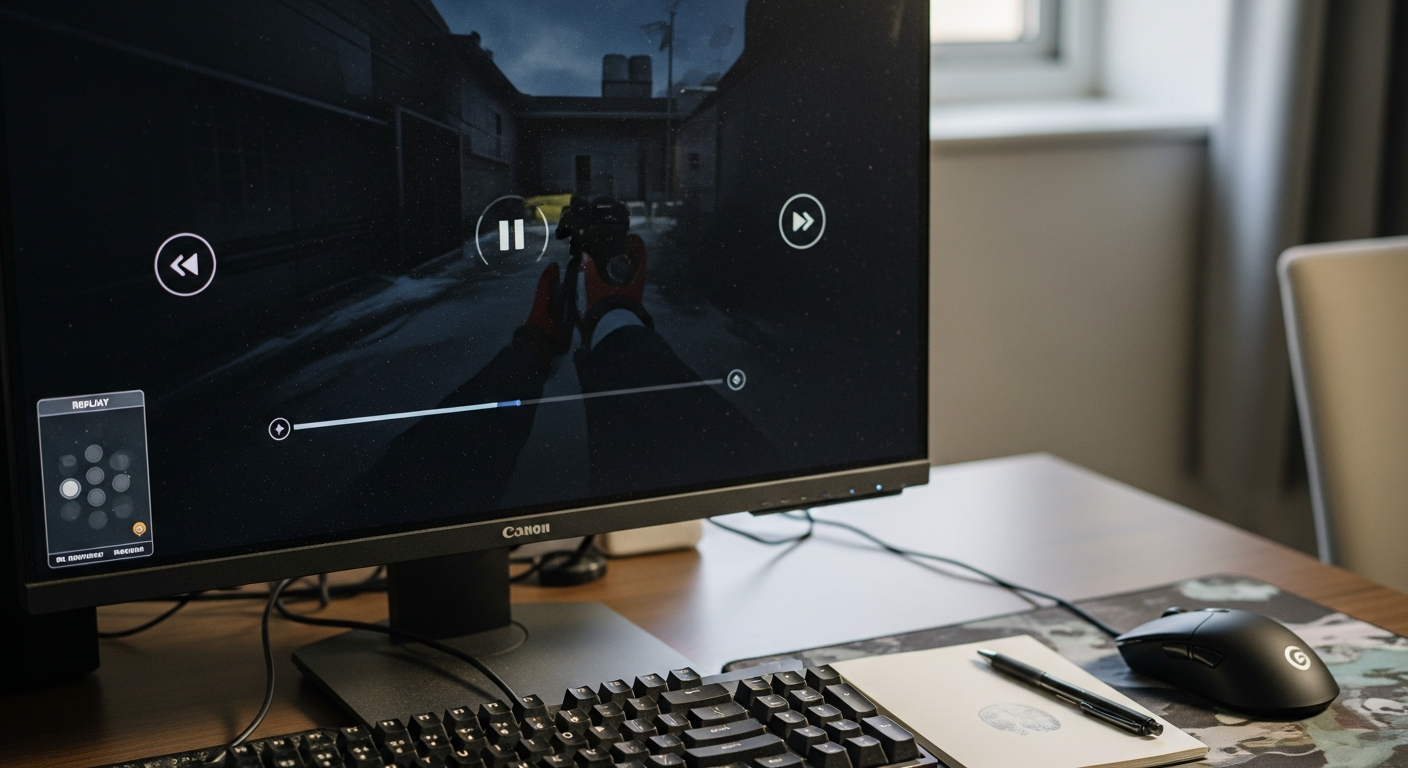
Getting these throws consistent takes repetition, and the game has a useful tool for that. You can map a rethrow action to a hotkey for offline practice. Open the console with the tilde (~) or backtick () key and enterbind k SV_rethrow_last_grenade`. After that, throw a grenade and press K to have the server repeat it from the same position. You can then watch from different angles to check the trajectory.
Combining the rethrow command with your automated release makes practice sessions much more efficient.
Best bind keys and grenade slots
Scrolling through your inventory to find a flash bang or Molotov wastes seconds you often don’t have. Individual grenade-to-key binds let you pull out exactly what you need without fumbling. Mapping specific slots to keys near your movement cluster means you’re ready before you even think about triggering your cs2 bind commands.
Most competitive players assign utility to the bottom row of the keyboard, where the thumb or index finger can reach it quickly. For example, binding x to slot8 lets you equip the Smoke Grenade instantly with bind x "use weapon_smoke grenade". You can do the same for the HE Grenade on c with bind c "use weapon_he grenade". That way you’re never pulling out the wrong item when you need to block a choke point or deal damage fast.
For the jump throw itself, you want a key that feels natural to press while your fingers are already on movement keys. Space bar, Left Alt, and mouse buttons are all common choices. If you’re using a mouse wheel jump bind for movement, it’s still worth keeping a separate keyboard key for grenade throws to avoid accidental misfires in chaotic situations.
Is a cs2 jump throw bind allowed?
A lot of players wonder whether scripting the grenade release counts as cheating. It doesn’t. Using a jump throw bind is perfectly fine in standard Counter-Strike 2 environments, and you won’t get a Valve Anti-Cheat (VAC) ban for setting it up.
These configs work without issues in official matchmaking, Premier mode, and most community servers. As long as the server allows standard binds, your setup will run cleanly. That said, third-party leagues and professional events sometimes have their own rules. Some organizers ban alias scripts that automate the jump and throw together, requiring manual execution instead.
Before playing in any league, check the rulebook. For regular ranked play in Valve’s official modes, the script is completely fine to use.
Has CS2 changed jump throw binds?
The move to Counter-Strike 2 did bring some changes to how jump throwing works. Early on, developers added a window of input leniency to make manual timing a bit easier for casual players. Even so, a dedicated script still gives you more precision than relying on that leniency alone. The automated command still makes your character jump and release the grenade at the highest point of the arc.
More recent patches have continued to refine things. The 2026 CS2 update improved overall jump-throw consistency and updated the in-game jump-throw preview camera. To stay in sync with the updated physics, many players also revisit their standard movement inputs. Double-binding your jump, for instance with bind mwheeldown +jump;bind wheel +jump;bind space +jump, gives you better control over momentum.
To make sure your inputs survive across sessions, set up a proper autoexec.cfg file. Saving your commands there means the script loads every time the game starts, so you’re not re-entering anything before a match.
What if the bind does not work?
A correctly configured bind should fire without issues every time. When it doesn’t, the problem is almost always a local configuration error rather than a server restriction. Here are the most common causes:
-
Configuration file errors: The most frequent issue is an incomplete autoexec.cfg setup. If the file is missing the correct formatting or doesn’t include the host_write config command at the end, the game won’t load your console command alias on launch.
-
Syntax mistakes: A missing quotation mark, wrong spacing, or a typo anywhere in the text will break the script. Check that every character matches the correct alias jump throw format exactly.
-
Key assignment conflicts: Assigning multiple actions to the same key can cause problems. If your grenade lineup bind overlaps with a mouse wheel jump bind or a hand-switch command, you’ll get unpredictable behavior instead of a clean throw.
Fixing these issues is usually quick. A few minutes checking your text files can save you from missing a critical utility throw when it actually matters.


Post Comment