CS2 stuttering: how to fix frame stutters and improve smoothness
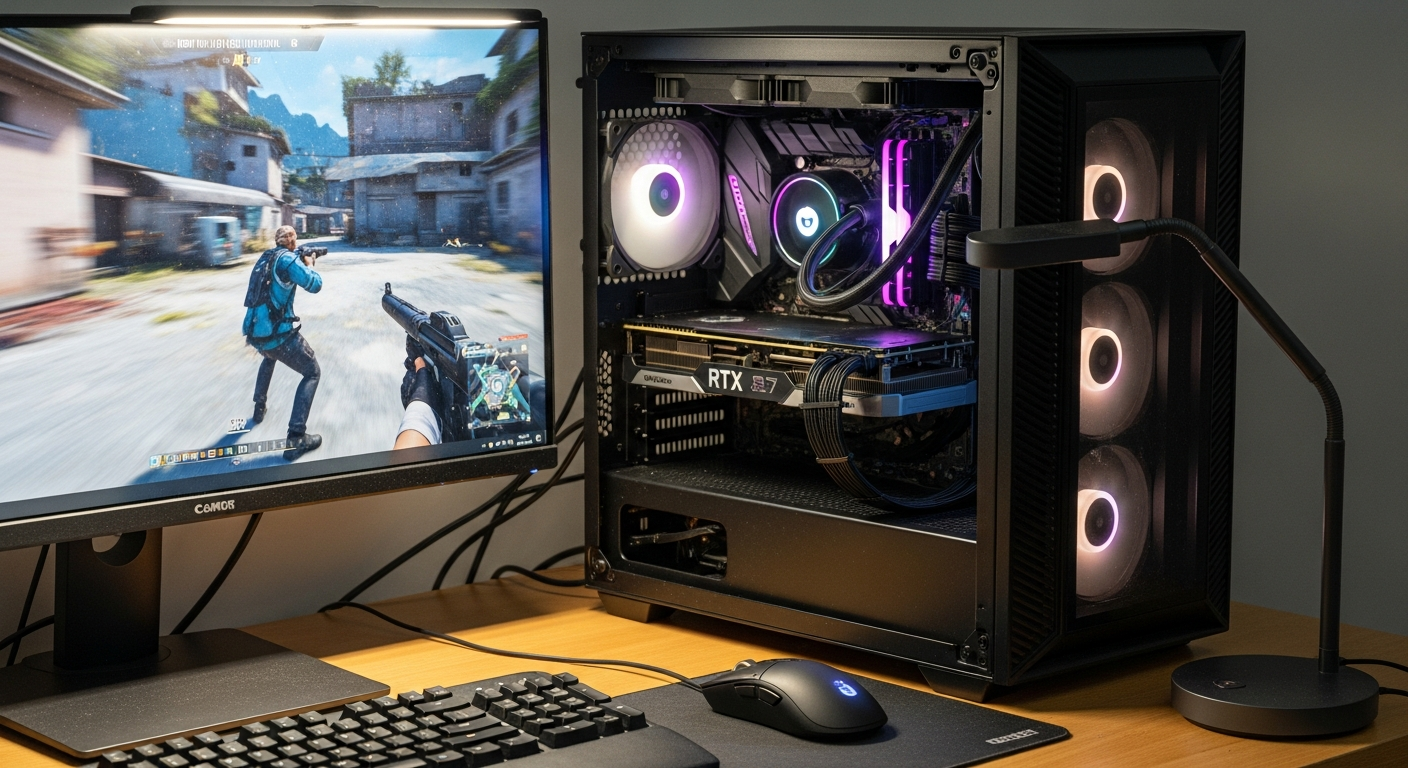
Table of Contents
Why CS2 stuttering happens?
CS2 performance issues often show up as frame delivery inconsistencies, leaving players with a choppy, unresponsive experience. You might notice random stuttering with irregular hitches that happen regardless of what’s going on screen.
In these cases, the game engine might report a high frame rate, but actual gameplay stays inconsistent. To find a permanent fix, you first need to figure out what’s actually causing those micro-stutters.
Several factors contribute to sudden drops in fluidity, from hardware limits to software configuration errors:
-
Hardware limitations – Less than 16 GB of RAM frequently triggers micro-stutters as the system constantly swaps data. Older or entry-level graphics cards struggle to keep frame times stable when rendering high-detail effects at 144 Hz or higher resolutions. CPU bottlenecks also restrict frame generation.
-
Software configurations – Outdated GPU drivers are a common cause of poor performance and visual glitches. Similarly, outdated or broken CS2 launch options can interfere with memory loading and cause instability. Pushing graphics settings beyond what your system can handle also ruins smoothness.
-
Thermals and connectivity – Overheating forces components to throttle their speeds, leading to big drops during long matches. An unstable network connection creates packet loss that shows up as stuttering, even when your local hardware is running fine.
Once you figure out whether the problem is thermal throttling, bad software settings, or memory limits, you can apply the right fix and get smooth gameplay back.
CS2 stuttering and frame pacing
Before trying to fix anything, it helps to understand the difference between low frame rates and frame pacing issues. Stuttering means frames are delivered unevenly, not just that the game is running slowly. This erratic rhythm creates input-to-action resync that directly affects your ability to track targets and react quickly, even when your overall FPS looks fine.
Frame-time spikes are usually caused by hardware constraints or specific software settings. CPU limits, background asset recompilation after updates, or overheating during long sessions can all ruin your gameplay. To get stable frame times and reduce micro-stutters, try these adjustments:
-
Lower graphics presets: Drop visual settings to medium or low, and turn off motion blur and antialiasing to reduce the rendering load on your GPU.
-
Disable Sync: Turn off Vertical Sync in your video options. Capping the frame rate this way often causes uneven delivery and increases input lag.
-
Optimize shader cache: Verify your game files and rebuild the CS2 shader cache after every major update, so the game isn’t compiling new assets while you’re playing.
Tweaking these rendering settings removes artificial limits and lets your hardware run as intended. Stable frame times help you stop those drops for good.
CS2 stuttering hardware requirements
Matching your system to the game’s graphical demands is key to avoiding stutters. Running Counter-Strike 2 on hardware below the minimum specs directly causes performance issues. CS2 requires at minimum Windows 10, DirectX 11 support, a 4-thread CPU, and 8 GB of RAM. For real stability and to eliminate micro-stutters during firefights, though, 16 GB of RAM and an NVMe SSD are practically mandatory.
How to fix cs2 stuttering?
Fixing sudden CS2 FPS drops means going through your system settings and game files one step at a time. Before opening your PC case, try these basic software tweaks to clear up common responsiveness issues:
-
Verify game files: Right-click CS2 in Steam, go to Properties, select Installed Files, and click Verify to replace any corrupted data causing hitches.
-
Adjust sound quality: Set your Windows audio to 16 bit, 44100 Hz (CD Quality) to prevent audio processing from interfering with game threads.
-
Apply basic graphics tweaks: Lower your visual presets to medium or low, and turn off motion blur and antialiasing for an immediate stability boost.
-
Repair the CS2 shader cache: Clear and rebuild the shader data to get rid of persistent stutters caused by outdated compiled files.
These steps cover the basics, but sometimes the problem runs deeper. If stuttering continues after all of this, your remaining options are reinstalling the game entirely or doing a clean Windows installation.
Update GPU drivers cleanly
Outdated graphics drivers frequently cause CS2 performance issues and unexpected frame rate hitching. Newer drivers include performance improvements specifically for Counter-Strike 2, affecting how your hardware renders the environment. Relying on Windows Update often leaves you with older, generic packages that lack these game-specific improvements. For the best results, update your GPU drivers directly from the manufacturer.
A clean update means wiping old files with Display Driver Uninstaller (CDU) to avoid leftover driver conflicts. After that, download the latest software from the official NVIDIA or AMD site. For maximum stability, open your control panel (NVIDIA Control Panel or AMD Adrenalin) and set the power management mode to high performance. Skipping the default Windows drivers gets you the optimizations needed to smooth out gameplay.
Always restart your computer after installation so the new display files initialize properly.
Lower CS2 video settings
Lowering your in-game graphics is one of the fastest ways to stop stuttering. High graphical fidelity puts a lot of stress on your hardware, often causing noticeable FPS drops during intense firefights.
Dropping to medium or low presets keeps things stable. Competitive players regularly hit higher frame rates by prioritizing performance over visuals.
-
Resolution scaling: Lowering your display resolution reduces the workload on your graphics card. If you play at 1920×1080, dropping to 900p or 1280×720 will free up resources and reduce micro-stutters right away.
-
Shadow and Shader Details: Set Global Shadow Quality to Low or Very Low, and reduce Shader Detail to Low. These lighting parameters consume a lot of processing power, and lowering them prevents frame dips when entering new areas.
-
Post-processing effects: Turn off motion blur and antialiasing. These filters add rendering time to every frame and directly contribute to visual lag.
-
Audio configuration: Sound processing also uses CPU cycles. Set your system audio to 16 bit, 44100 Hz (CD Quality) to prevent the processor from struggling with heavy audio decoding during chaotic moments.
These adjustments let your computer focus on delivering smooth gameplay. You’ll notice a more responsive experience without the visual hitches.
Tune CS2 launch options
Adjusting your CS2 launch options is a practical way to optimize game behavior before it even loads. By setting custom startup parameters in Steam, you can fix persistent hitches and reduce stuttering. Many players carry over outdated commands from previous versions without realizing it, so start by clearing the slate. Go to your Steam library, right-click Counter-Strike 2, select Properties, and empty the Launch Options box to remove any broken configurations.
-
-Ovid: Skips the intro video, letting the game load faster and avoiding initial loading stutters.
-
-high: Tells your operating system to assign high priority to the game process, which helps stabilize frame pacing during intense moments.
-
-threads X: Forces the game engine to use your actual CPU thread count (replace X with the real number).
-
-No joy: Disables background joystick support, freeing up minor system resources and reducing input lag.
-
+exec autoexec.cfg: Applies your personal config file automatically every time the game starts.
-
-console: Opens the developer console immediately on launch, as an alternative to enabling it through the in-game menus.
Combining these into a single string like -Ovid -no joy -high -threads 8 gives you a solid startup sequence. Pairing these launch options with an external frame rate limiter like RTSS (Riva Tuner Statistics Server) or an in-game FPS cap can further stabilize frame pacing. If you experience new instability after a game update, just clear the launch options box completely to reset everything.
CS2 stuttering on network
Hardware often gets the blame for game hitches, but an unstable internet connection is a frequent cause of CS2 micro-stutters too. When your network drops packets or experiences ping spikes, it creates resyncs between your local client and the game servers. Players then see rubber banding and teleporting that looks just like a system freeze, even when their hardware is rendering frames without any issues. Working out whether the problem is your network or your hardware is the first step.
-
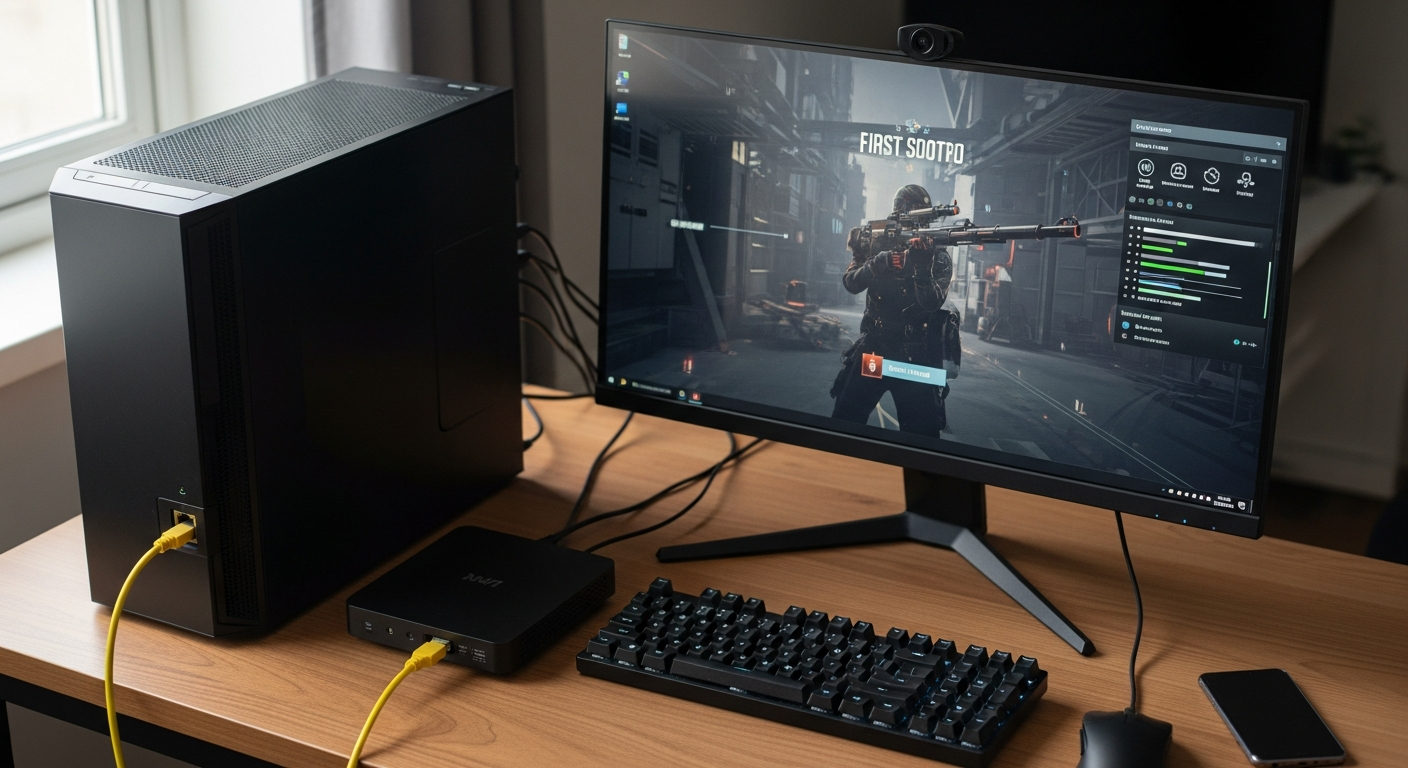
Wireless interference: Wi-Fi signals deal with physical obstacles and competing channel frequencies, which causes dropped packets. Plugging your PC directly into the router with an Ethernet cable gives you the consistent data flow needed for steady frame pacing.
-
Network tuning: Adjusting in-game network parameters, like the rate and update rate values for your bandwidth, helps prevent packet loss during chaotic moments.
-
Server routing: ISPs sometimes route your traffic through congested regional nodes, generating latency spikes regardless of your home connection speed. A gaming-optimized VPN can help route your connection more efficiently, but only use one if your default routing is clearly the problem.
Switching to a wired connection usually fixes network rubber banding entirely. Once your internet is stable, it’s much easier to tell whether any remaining stuttering is coming from your hardware.
CS2 stuttering from overheating
Thermal throttling is a major cause of CS2 FPS drops, especially during long sessions. When your CPU hits around 85–90°C or your GPU goes above 80–85°C, the hardware automatically reduces clock speeds to avoid damage. That sudden loss of processing power causes immediate micro-stutters. Even players with high-end setups run into this if their cooling can’t keep up.
-
Dust accumulation: Buildup inside the PC case blocks airflow and forces fans to work harder. Cleaning internal components with compressed air regularly restores ventilation and lowers temperatures.
-
Thermal paste degradation: The compound between your CPU and its cooler dries out over time, limiting heat transfer. Replacing it every couple of years keeps thermal conductivity where it needs to be.
-
Inadequate case airflow: Poorly positioned fans create pockets of hot air that choke performance. A balanced intake and exhaust fan setup keeps cool air moving over your components continuously.
Fixing these thermal issues stops your hardware from slowing itself down to avoid damage. A well-cooled system holds steady clock speeds and avoids random lag spikes during important rounds.
CS2 stuttering and cache files
Game updates often reset shaders and core settings, which introduces temporary performance issues. In the first few days after a major patch, your system needs to recompile shader data on the fly as you move through different maps. When that compilation happens during an active match, it causes micro-stutters right as you engage an enemy. Outdated graphics drivers can make these shader-compile hitches worse and cause unexpected texture pop-in.
-
Verify integrity of game files: Open your Steam Library, right-click Counter-Strike 2, select Properties, go to Installed Files, and click Verify. Replacing corrupted or missing files directly helps fix stuttering and can also resolve lingering VAC authentication errors.
-
Repair the CS2 shader cache: Clearing outdated graphics data forces your system to rebuild a fresh cache from scratch, removing conflicting entries that trigger persistent stuttering in full-screen mode.
Running these verification steps ensures your game client is working from clean, up-to-date files. Keeping your storage data healthy improves frame pacing and prevents asset-loading bottlenecks.
CS2 stuttering and background apps
Running multiple applications at once can starve your system of the CPU and RAM it needs to render frames smoothly. Software running silently in the background can quietly consume resources and trigger CS2 FPS drops at the worst possible moments.
To stop these hitches, you need to make sure the game gets priority over everything else and that background apps aren’t interrupting the rendering pipeline.
-
Close resource-heavy software: Programs like Discord, Chrome, FPS trackers, and OBS consume processing power and cause micro-stutters. Closing them before launching a match frees up memory and CPU cycles for the game.
-
Disable the Steam Overlay: The built-in Steam interface can interfere with frame pacing and create performance bottlenecks. Turning it off in the Steam properties for Counter-Strike 2 removes a well-known source of screen stuttering.
-
Elevate process priority: Open Task Manager, find the game process, right-click CS2.exe, and go to Set Priority, then choose High. This tells your operating system to allocate resources to the game ahead of other background tasks.
-
Turn off Windows background apps: Disabling background applications in your Windows settings stops hidden software from downloading updates or running telemetry tasks during your session, which helps reduce input lag and stuttering in full-screen mode.
Closing background apps keeps your hardware focused on the game, and the difference in smoothness is usually noticeable right away.



Post Comment